Use this guide to order a consumer credit report directly through the CISCO Credit web portal.
Portal login | |
Applies to | Users enabled for consumer credit report ordering in the CISCO Credit Portal. |
Minimum information required | Consumer first name, last name, Social Security number, and current residential address. |
Important reminder | Selecting Save creates or updates a file, but selecting Save does not order credit. Select Order when the report is ready to be submitted. |
Overview
Consumer credit reports can be ordered through the CISCO Credit Portal. Many clients can also order through a Loan Origination System, often called an LOS, but the exact workflow depends on the LOS and the way the account is configured. This article focuses on ordering directly through the CISCO Credit web portal.
Before you begin Make sure the login being used is enabled for consumer credit report ordering. If the Order Credit Report option is not available, contact CISCO Credit for assistance. |
Order a Consumer Credit Report
1. Sign in to the CISCO Credit Portal
Go to the CISCO Credit Portal login page and sign in with the username and password assigned to your account: https://credit.ciscocredit.com/custom/login.aspx
2. Open the Order Credit Report page
From the Main page, locate the Products & Services menu. In the Credit Verification section, select Order Credit Report.
If the option is missing If Order Credit Report does not appear, the login may not be enabled for consumer credit report ordering. Please reach out to CISCO Credit for more information and assistance. |
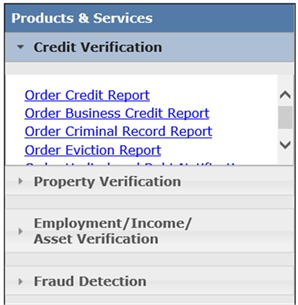
Image 1: Order Credit Report link in the Credit Verification section.
3. Enter the consumer information
Complete the fields on the Order Credit Report page. At minimum, enter the consumer first name, last name, Social Security number, and current residential address.
Depending on your account setup, you may also need to select the bureaus, scores, and fraud products needed under the Credit Order section.
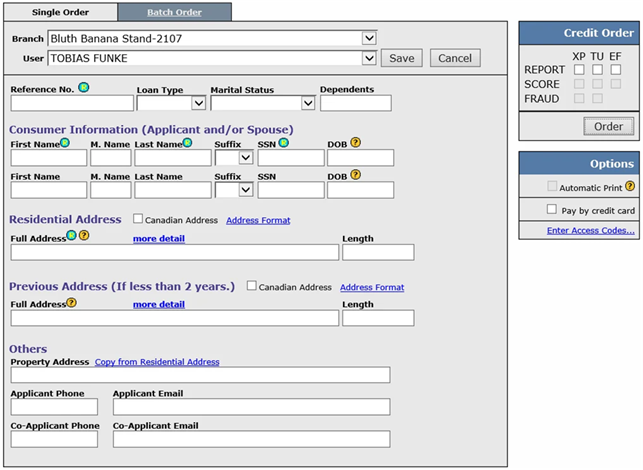
Image 2: Order Credit Report page with consumer information fields and Credit Order selections.
4. Submit the credit order
When the required information and credit order selections are complete, select Order on the right side of the page. This submits the request and orders the credit report.
Do not use Save as the final step The Save button saves the entered consumer information and can create a credit file number, but it does not order a credit report or pull bureau data. Use Order when the credit report should be submitted. |
Additional Notes and Account-Specific Options
Topic | Guidance |
Ordering from an LOS | If you need to order through a Loan Origination System, check with your LOS administrator. Each LOS has a different workflow for submitting consumer credit orders. |
Save versus Order | Save creates or updates a file with the information entered. Order submits the request to order the report. A saved shell file can be upgraded later if bureaus need to be added. |
Soft pull versus hard pull | Many clients are set up with both a hard pull account and a prequalification, or PQ, soft pull account. The inquiry type is determined by the specific login used, not by a general selection on the web order screen. For example, a hard pull user login might be JSmith, while the related soft pull login might be JSmithPQ. If you are unsure which inquiry type is tied to your login, contact an administrator with your company or CISCO Credit support at support@ciscocredit.com. |
Access codes | If a bureau provides the consumer with an access code, select Enter Access Codes before ordering. Currently, Experian access codes are supported. |
Canadian reports | If your account is enabled for Canadian report ordering, select the Canadian Address checkbox when entering the consumer address. |
Quick Troubleshooting
I cannot find Order Credit Report.
Confirm the login is enabled for consumer credit ordering. If the option is still unavailable, contact CISCO Credit.
I selected Save but no report was ordered.
Return to the file, confirm the information is complete, make the needed Credit Order selections, then select Order.
I need to order through my LOS instead.
Use the workflow provided by the LOS administrator or internal system administrator, since order steps vary by LOS platform.
Need help? For questions about portal access, account setup, permissions, or ordering options, contact CISCO Credit support. |
Follow this link for more CISCO Credit Knowledgebase articles.
Was this article helpful?
That’s Great!
Thank you for your feedback
Sorry! We couldn't be helpful
Thank you for your feedback
Feedback sent
We appreciate your effort and will try to fix the article