Overview
Use this guide to create a new user profile in the CISCO Credit Web Portal. New users will receive their login name and a password creation link by email once the account is created.
Before you start
- You must be able to sign in to our web portal with an admin account that has access to User Setup.
- Have the new user's full name, email address, and mobile phone number available.
- Decide what report ordering permissions/restrictions the new user should have and the re-order interval.
Steps
1. Open User Setup
After you sign in, locate the Tools section and select User Setup
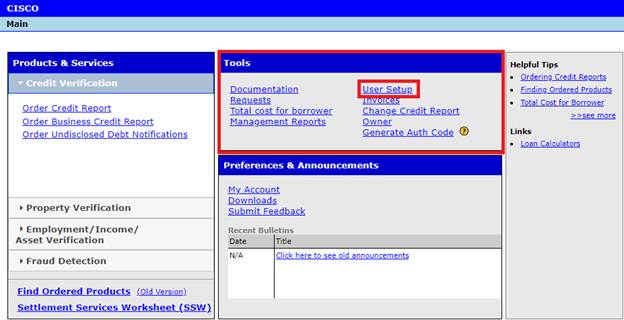
Screenshot: User Setup in the Tools section of our Main Desktop
2. Select Add
In the upper-left area of the User Setup page, select Add

Screenshot: Select Add in this window
3. Complete the new user profile
The New User Setup page opens. Complete the required fields and set the correct permissions.
Required fields (minimum)
- Name: first and last name.
- Login: Typically first letter of the first name + last name (no spaces). Example: jsmith.
- Email address: This is where the login instructions are sent.
- Cell phone number: Used to receive 2-Factor Authentication codes.
Password setting
We recommend leaving the password set to Set automatically. This helps the portal generate a secure initial password and send instructions to the user's email.
Permissions and ordering options
In the lower section, set the following drop-down options as appropriate:
- Report Ordering: Controls whether the user can order and manage credit reports.
- Supplement Ordering: Controls whether the user can order supplemental reports or add-ons.
- Rescore Ordering: Controls whether the user can submit rescore requests.
- Allow Re-order After: Controls how soon a report can be reordered after the initial pull.
Drop-down option meanings
- Order for Self: User can only view and edit files they originally pulled.
- Order for All: User can view and edit reports ordered by other users.
- Always Allow (recommended for admins): Commonly used for admin roles in the Allow Re-order After setting.
Payment settings
- Require credit card payment on each order: If selected, users must enter a credit card at the time of ordering.
- Default Credit Card Information: If enabled, users may save a card on file for faster future ordering, based on your company policy.
- Bill User Separate from Company: If selected, users are responsible for paying for their own products and services ordered from CISCO Credit. If you don’t see this option, please contact CISCO Credit Tech Support.
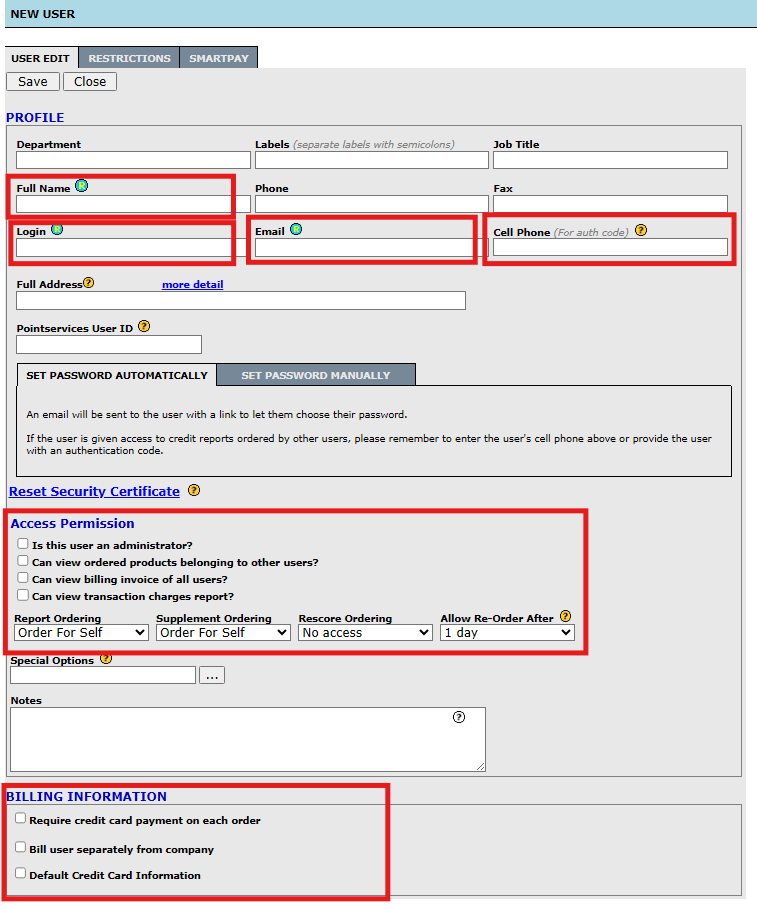
Screenshot: New user profile and permissions page
4. Save and verify
Select Save (or the equivalent action on your page). Then:
- Confirm the user appears in the user list.
- Ask the user to check their email for login instructions (including spam or junk folders).
Troubleshooting
- I do not see User Setup under Tools. Your account may not have the required permission. Contact your system administrator.
- The user did not receive the email. Verify the email address is correct, then ask the user to check spam or junk folders.
- The Login value is rejected or already in use. Choose a unique login. A common approach is first initial + last name, then add a number if needed (example: JSmith2).
If you have questions or need assistance with permissions, contact our support team and include:
- Company name
- New user's name, email address, and cell phone number
- The permissions you want applied (Self vs All, re-order interval, and any payment requirements) along with any restrictions to be applied.
Follow this link for more CISCO Credit Knowledgebase articles.
Was this article helpful?
That’s Great!
Thank you for your feedback
Sorry! We couldn't be helpful
Thank you for your feedback
Feedback sent
We appreciate your effort and will try to fix the article