1. Login to the CISCO Credit web portal with the account you’ve ordered credit with.
2. Open your borrower’s file by using the search window at the top of the page, or by selecting Find Ordered Products and clicking the blue highlighted file.
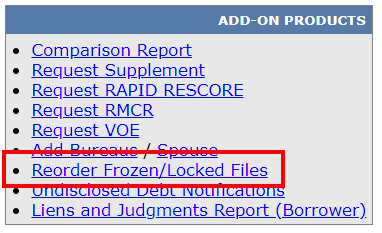
3. Select the Reorder Frozen/Locked Files link in the Add-On Products section of the page.
4. Confirm in the pop-up message that you wish to proceed with copying the file, removing the frozen or locked in-files, and reordering them.
5. After processing, a new file will be generated with the previously frozen files merged into the existing report. Please note, there will be a new file number for this.
NOTE: Frozen files cannot be reordered if the file is more than 30 days old. If the file is 30 days old or more, a new credit report will need to be ordered.
Follow this link for more CISCO Credit Knowledgebase articles.
Was this article helpful?
That’s Great!
Thank you for your feedback
Sorry! We couldn't be helpful
Thank you for your feedback
Feedback sent
We appreciate your effort and will try to fix the article