Use this when report pages show errors such as “invalid parameter,” “Missing data,” or similar report-viewing messages.
Audience | CISCO Credit Support and portal users |
Applies to | Google Chrome |
Issue | Report pages display errors such as “invalid parameter” or “Missing data.” |
Resolution | Delete the site-specific cookies and cached site data for the CISCO Credit portal, then sign back in and retry the report. |
Purpose
Some report-viewing errors in the web portal can be caused by stale or corrupted site-specific cookies and cached site data. Clearing data only for the CISCO Credit portal in Chrome can refresh the browser session without clearing every saved site in the browser.
Before you begin: Save any work in the portal. Performing these actions will sign you out after site data is deleted and you will need to sign back in before retrying the report. |
Procedure
Step 1: Open the site controls menu
In Google Chrome, open the CISCO Credit portal. Click the sliders icon immediately to the left of the URL or web address in the address bar.
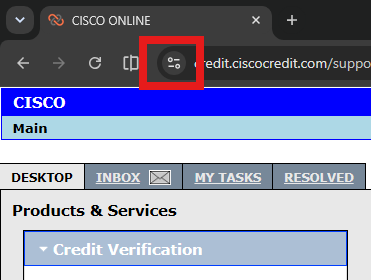
Screenshot 1: The sliders icon is highlighted to the left of the portal web address.
Step 2: Open Site settings
In the site controls menu, select Site settings. Chrome opens the site-specific settings page in a separate tab.
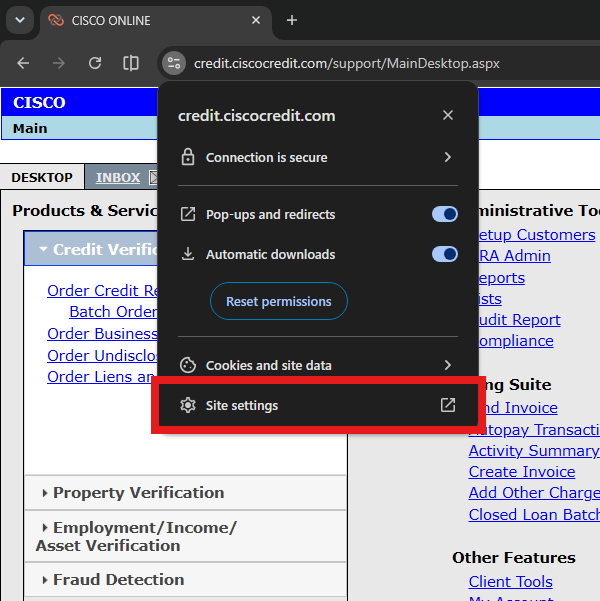
Screenshot 2: The Site settings option is highlighted in the site controls menu.
Step 3: Delete site data
In the Chrome settings tab for the site, select Delete data. When prompted, confirm the deletion. Then return to the portal, sign in again if needed, and retry the report.
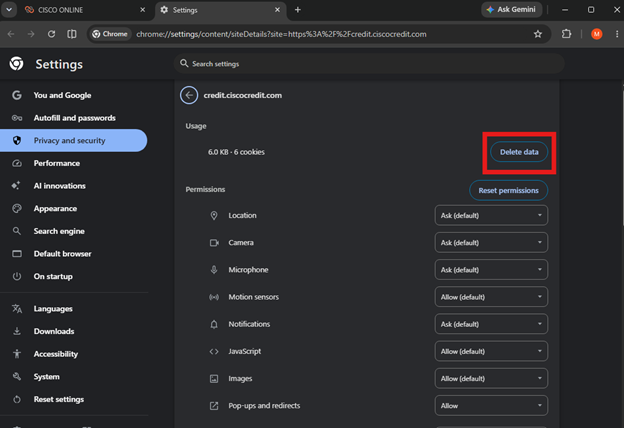
Screenshot 3: The Delete data button is highlighted on the Chrome site settings page.
Expected result
After the site data is deleted and the user signs back in, the report should open without the previous “invalid parameter,” “Missing data,” or similar browser-session related error.
If the error continues
- Confirm that the user deleted data for the correct portal URL.
- Close all Chrome tabs connected to the portal, reopen Chrome, and sign in again.
- Try the report again in a new Chrome window.
- If the issue persists, document the exact error message, the report name, the user login, the date and time, and escalate according to the standard support process.
Support note
This process clears cookies and cached site data for the selected portal site only. It does not intentionally clear all Chrome history, passwords, or data for unrelated websites.
Was this article helpful?
That’s Great!
Thank you for your feedback
Sorry! We couldn't be helpful
Thank you for your feedback
Feedback sent
We appreciate your effort and will try to fix the article