The Activity Summary report in the CISCO Credit Web Portal lets you view transaction totals and related charges for a selected time period. This is the fastest way to confirm usage and totals without manually adding up individual transactions.
Features
- Reconcile month-end, quarter-end, or year-end totals for billing and accounting.
- Validate charges for a specific date range using portal reporting data instead of manual counts.
- Identify usage trends over time (for example, increases in activity from one period to another).
- Allocate costs internally by department when reporting needs to match cost centers.
- Export totals to Excel for filtering, pivot tables, budgeting, and sharing with internal teams.
- Print a copy for documentation, approvals, or audits.
Before you begin
- You must have a valid portal username and password.
- Your user role must have access to Management Reports (some roles are restricted).
Steps to run an Activity Summary report
1. Log in to the CISCO Credit Web Portal using your username and password.
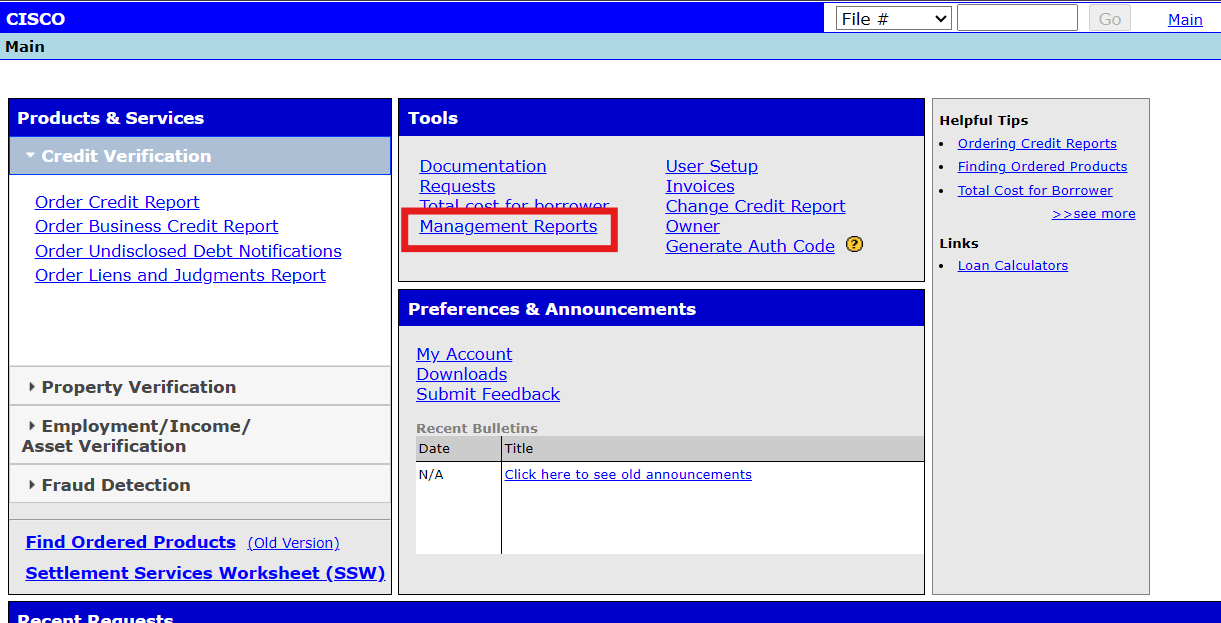
2. On the Main Desktop, in the Tools section, select Management Reports.
3. Select Activity Summary.
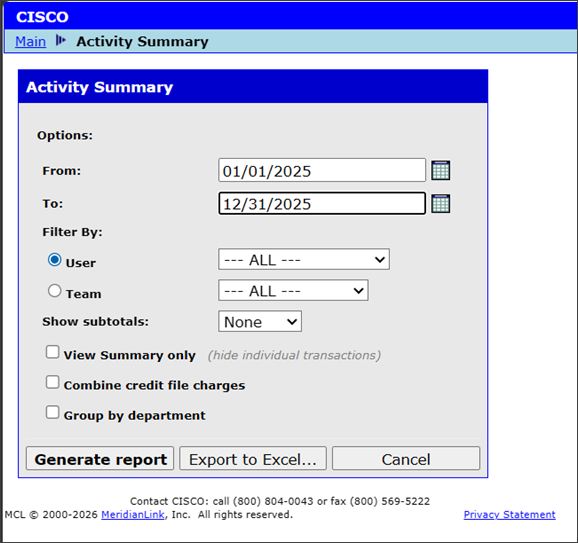
4. Set the From and To dates for the period you want to review.
5. Select View Report.
Common date range examples
- Monthly totals: From: first day of the month, To: last day of the month
- Quarterly totals: From: first day of the quarter, To: last day of the quarter
- Annual totals: From: 01/01/2025, To: 12/31/2025
Optional settings (what they do)
The Activity Summary window includes optional settings that change how totals are displayed. Use the settings below to match your reporting needs:
View Activity Summary: Shows a summarized view designed for quick totals and review.
Combine credit file charges: Combines related credit file charge items into simpler totals. This is helpful when you want a high-level view for reconciliation.
Group by Department: Groups totals by department, which helps when your organization allocates costs by cost center or team.
View, export, or print
After selecting your date range and any optional settings, choose one of the following actions:
- Generate Report - Opens the report in the web portal for on-screen review.
- Export to Excel - Downloads an Excel file so you can sort, filter, share, and build pivot tables.
- Print - When the report is open, select Print in the top-right of the window to print or save as PDF.
Troubleshooting
I do not see Management Reports
- Your role may not have reporting permission. Contact your company’s administrator to request access.
The report is blank
- Verify your From and To dates. Expand the date range to confirm there was activity during that period.
Totals do not match what I expected
- Re-run the report with different optional settings (especially Combine credit file charges). If needed, Export to Excel and review the totals with your internal cutoff dates.
- If you have a soft pull account that you’ve ordered credit with, you will need to login to your PQ account and perform all steps again.
Export to Excel is missing or fails
- Try generating the report first, then export. If the issue persists, try a different browser or clear cached data, then attempt again.
FAQ
- Can I run this for any date range? This is usually limited to a 12 month period at a time, depending on how many orders there are on an account.
- Can I share the report with my Accounting team? Yes. Export to Excel is the easiest format for sharing and analysis.
- Can I keep a copy for audit purposes? Yes. Use Print to print or save the report as a PDF from your browser.
Need help?
If you need assistance locating the report, validating totals, or troubleshooting access, contact CISCO Credit Support and include: your username, the date range used, and a screenshot of any error message.
Was this article helpful?
That’s Great!
Thank you for your feedback
Sorry! We couldn't be helpful
Thank you for your feedback
Feedback sent
We appreciate your effort and will try to fix the article