Teams allow you to control which users can see and work with each other’s files. When users are placed in the same Team, they can view files from other users within the team and submit Supplements or Rapid Rescores on those files. Users outside the Team cannot access those files.

How Team‑based access works
- Users can view files owned by teammates.
- Users can submit Supplements and Rapid Rescores for files belonging to teammates.
- Users cannot see or act on files owned by users who are not in their Team.
Who can set up Teams?
Only administrators can create, edit, or remove Teams.
To configure Teams:
- Go to the Main Desktop of our web portal.
- Select User Setup in the Tools Section (in the upper center part of the page).
- In the Show dropdown, change from User Accounts to Team Setup.
Team Setup Page Options:
- Add: create a new Team.
- Edit: change an existing Team’s name, description, or membership.
- Remove: delete a Team. Deleting a Team will unassign the users who were in it.
Note: Before removing a team, check each user’s privileges to avoid unintended access.
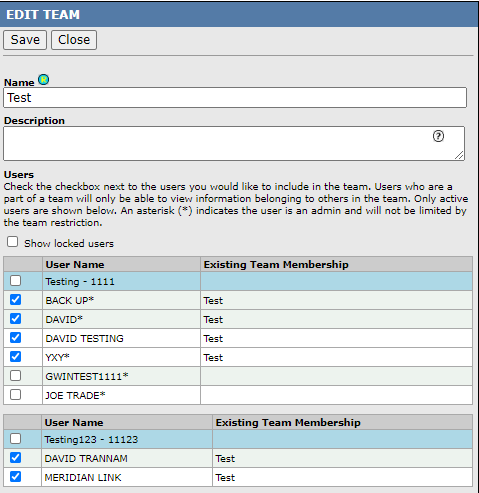
Create a Team
- On the Team Set Up page, select Add.
- Fill in the Name field with a clear label, such as “Johnson Team” or “Processor Team”.
- Optionally add a Description to explain the Team’s purpose.
- In the Username list, select users who should belong to this Team:
- Check the box beside an individual username to add that person.
- If the username row is shaded blue, selecting it will include all users in that branch grouping.
- Save your changes.
Edit an existing Team
- On the Team Set Up page, select Edit next to the Team you want to change.
- Update the Name, Description, or membership checkboxes as needed.
- Save your changes.
Remove a Team
- On the Team Set Up page, select the Team and choose Remove.
- Confirm the deletion. All users from the deleted Team will be unassigned from that Team. Reassign them to other Teams if needed.
Check user access
After you add, edit, or remove a Team, open each affected user’s account and review their privileges. Pay special attention to the Order for All setting.
- If a user is in a Team, Order for All lets them order reports for any user within that Team.
- If a user is not in a Team and Order for All remains enabled, they can order reports for every user in the company.
Because of this behavior, verify each user’s privileges every time you change Team membership.
Best‑practice suggestions
- Keep Teams small and purpose‑driven: Group by loan officers, processors, and LO assistants who work on the same loans.
- Use clear names: Include the names of users within the description box for easy reviewal.
- Review quarterly: remove users who have changed roles and delete unused Teams.
- Avoid overlap unless intentional: a user can be placed in multiple Teams but only do this when they truly need broader access.
Follow this link for more CISCO Credit Knowledgebase articles.
Was this article helpful?
That’s Great!
Thank you for your feedback
Sorry! We couldn't be helpful
Thank you for your feedback
Feedback sent
We appreciate your effort and will try to fix the article