1. Log into the CISCO Credit web portal.
2. Open the Borrower's File: Use the search field at the top of the page or select the Credit Verification link under Recent Requests, then click on the borrower’s file number to bring up the file.
3. Select ScoreNavigator: Click the ScoreNavigator link to the right of the file under Add-On products.
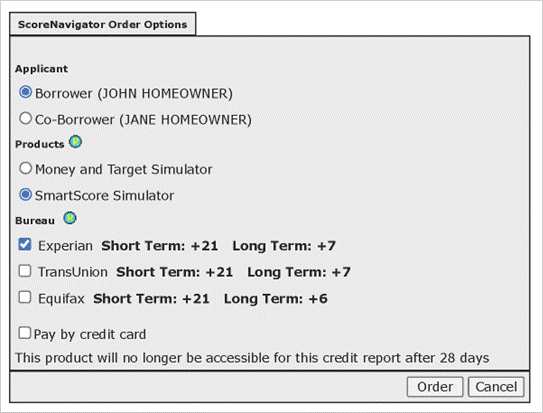
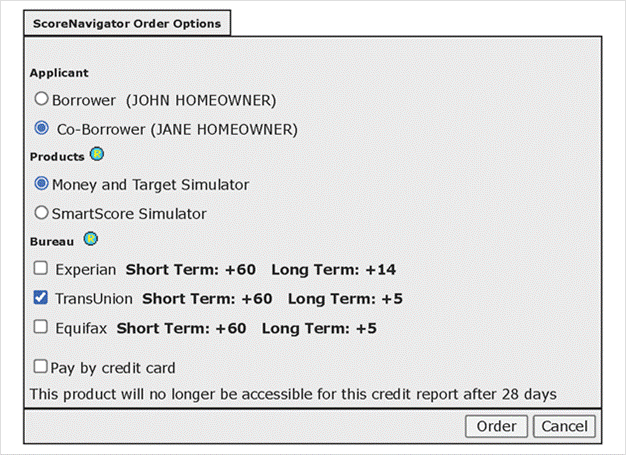
4. Select the Borrower: From the ScoreNavigator Order Options Page, choose the borrower for whom you want to run the SmartScore Simulator (for joint files only).
5. Choose the Product: Select the "SmartScore Simulator" from the available products.
6. Select the Credit Bureau: Choose the desired credit bureau (e.g., Equifax, Experian, or TransUnion) for the simulation. Multiple bureaus can be ordered at the same time.
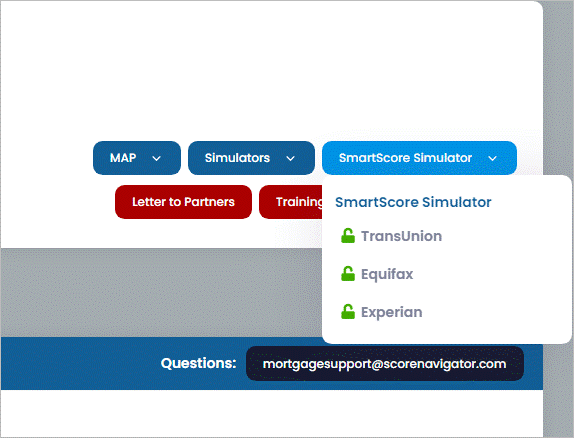
7. Using SmartScore Simulator: When ScoreNavigator opens, select the dropdown in the upper right corner that says “SmartScore Simulator” and choose one of the ordered bureaus (next to a green "unlock" icon).
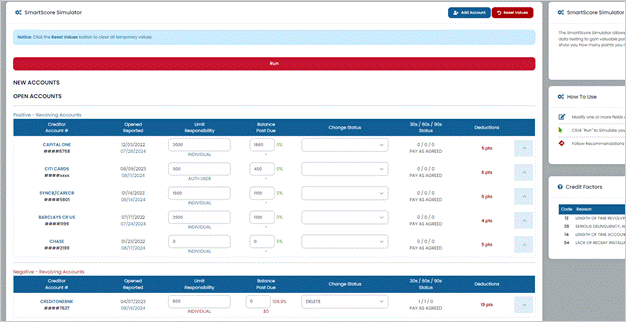
8. Locate Tradelines: Scroll down until you see the borrower’s tradelines.
9. Modify Account Information: You can modify one or more fields of data such as creditor, account number, date opened, credit limit, balance, etc.
10. Run the Simulation: Click the "Run" button at the bottom of the page to generate the simulation.
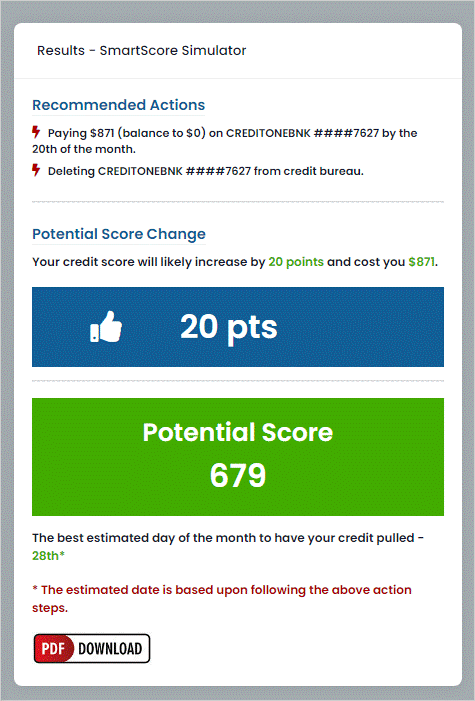
11. Review the Results: The simulator will show potential score changes and the cost to the borrower. Ignore any information regarding dates to pay balances and reorder credit.
Ordering and Using the Money & Target Simulator
1. Log into the CISCO Credit web portal.
2. Open the Borrower's File: Bring up the borrower’s file. Select the ScoreNavigator link to the right of the file under Add-On Products.
3. Select the Borrower: From the ScoreNavigator Order Options Page, choose the borrower for whom you want to run the simulator (for joint files only).
4. Choose the Product: Select the "Money & Target Simulator" from the available products.
5. Select the Credit Bureau: Choose the desired credit bureau (e.g., Equifax, Experian, or TransUnion) for the simulation. Multiple bureaus can be ordered at the same time.
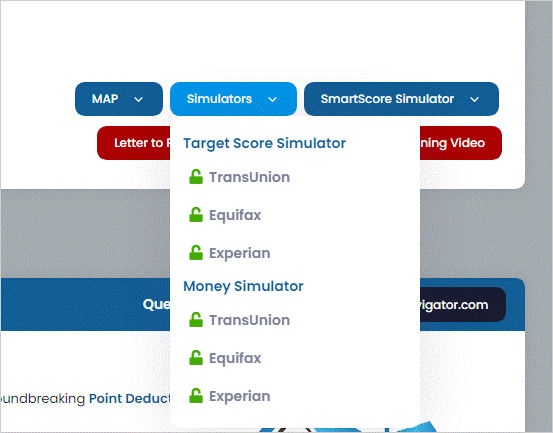
6. Open Simulators: When ScoreNavigator opens, select the dropdown link that says “Simulators” in the upper right corner of the screen. Choose one of the ordered bureaus for either the Target Simulator or the Money Simulator.
7. Input Information:
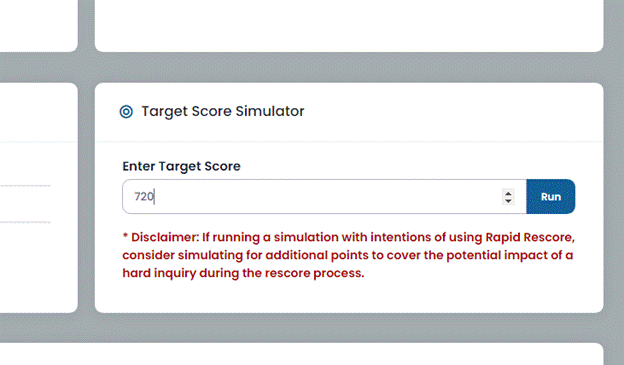
Target Simulator: Input the desired credit score for the borrower and select Run.
Money Simulator: Input the available funds the borrower has for improving their credit score and select Run.
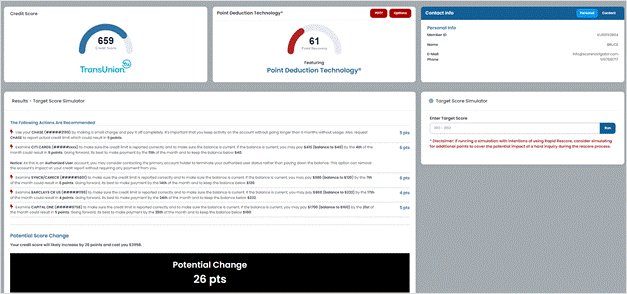
8. Review the Results: After selecting Run, ScoreNavigator will provide detailed information for the borrower to increase their credit score, if possible.
9. Save Instructions: To save the instructions, press CTRL + P to print or click the PDF Download icon in ScoreNavigator.

Follow this YouTube playlist link for video demonstrations on using ScoreNavigator:
YouTube.com/playlist?list=PLXxQR1Y3mbf29wL0nOSUcpjFP4pl88Ndo
There are more options to simulate inside the SmartScore Simulator. For detailed instructions, please review the ScoreNavigator User Guide (Pages 24 - 38).
Follow this link for more CISCO Credit Knowledgebase articles.
Was this article helpful?
That’s Great!
Thank you for your feedback
Sorry! We couldn't be helpful
Thank you for your feedback
Feedback sent
We appreciate your effort and will try to fix the article