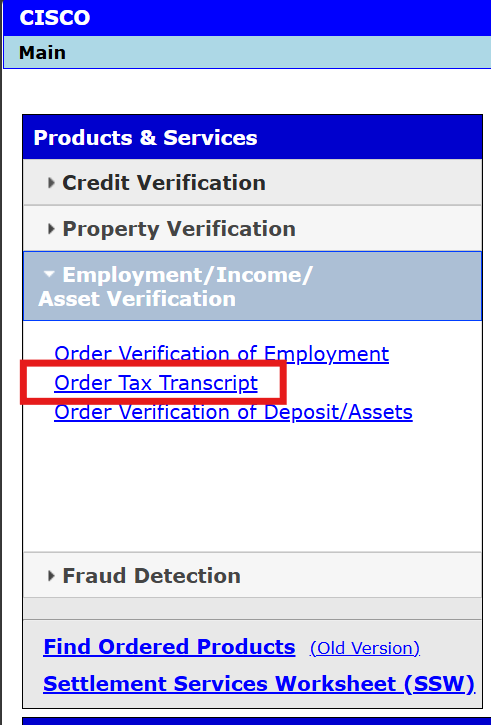
To order a Tax Transcript in our web portal, click on the Tax Transcript link under Employment/ Income/ Asset Verification in the Products & Services section.
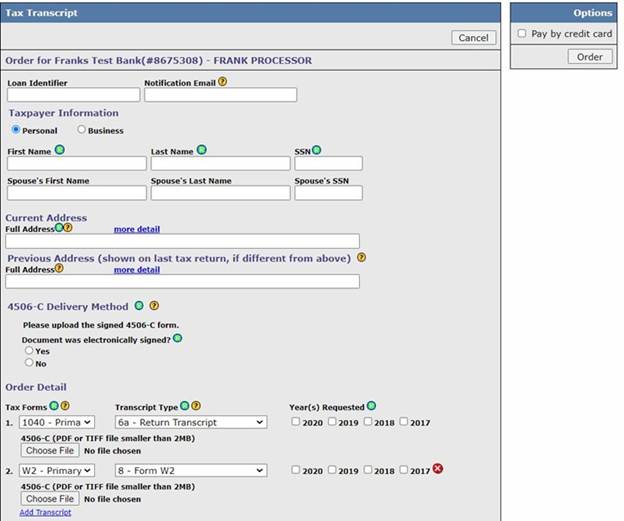
Fill out the following consumer information on the order screen. Fields designated with the green letter R are required fields. The rest of the consumer information is optional, but we recommend filling out as much information as possible.
- Loan Identifier
- Name or business name
- SSN/EIN
- Full Address under Current Address
Select at least 1 tax form using the dropdowns and years requested. The available Tax Forms that can be ordered are:
- 1040 - The form that individuals use to disclose their annual income for the year.
- W2 - The form that an employer must send to the employee and the IRS at the end of the year which discloses the employee's annual wages, and the amount of taxes withheld from his or her paycheck.
- 1099 - The form that businesses provide to the independent contractors and the IRS at the end of the year which discloses the non-employee's annual wages.
- 1120 - The form that corporations use to disclose their annual earnings for the year.
- 1065 - The form that partnerships use to disclose their annual earnings for the year.
Click the Add Transcript link to add additional transcripts to the order. Each transcript will place a tax transcript request order. You may add up to 4 tax transcript request orders.
Click the red X to remove transcripts from the order.
Each Transcript Order must have its own Authorization form.
Select one of the two delivery methods. You can either fax a Tax Transcript Request form or upload a signed tax transcript request form in PDF or TIFF format. Depending on your Tax Transcript Request provider, you may have different options. Please see the Additional Fields section for more information.
Click on the Order button to place the Tax Transcript order. If you get any warnings, please correct them and try to order again. You may get a warning screen indicating that a tax transcript request order already exists for the consumer. Please see the Duplicate Detection section for more details.
Delivery Methods
If your tax transcript request provider supports it, you may have seen additional delivery methods. We currently support the following:
Faxing. The faxing option allows a user to fax in a tax transcript request form instead of uploading it via PDF. Most tax transcript request providers no longer support this option.
Uploading a PDF or TIFF. This option is the most used and allows the user to upload a PDF or TIFF tax transcript request form to the provider.
Uploading a PDF or TIFF and marking it as an electronically signed tax transcript request. Due to IRS auditing requirements, a tax transcript request provider may require that the end user upload an electronically signed certificate along with the tax transcript request form.
For e-signed tax transcript requests, please do the following:
Select whether the Document was electronically signed checkbox. This will notify the tax transcript request provider that the order is e-signed (or not) so they can process it correctly.
If the e-sign certificate and tax transcript request form are combined in one PDF, upload it using the Tax transcript request upload field.
If the e-sign certificate and tax transcript request form are in separate PDF documents, upload the tax transcript request form using the Tax transcript request upload field and upload the e-signed certificate using the E-Sign Audit Log upload field. This will help ensure your tax transcript request order does not get rejected by the tax transcript request provider.
Please see the images below for examples of how the forms should be filled out
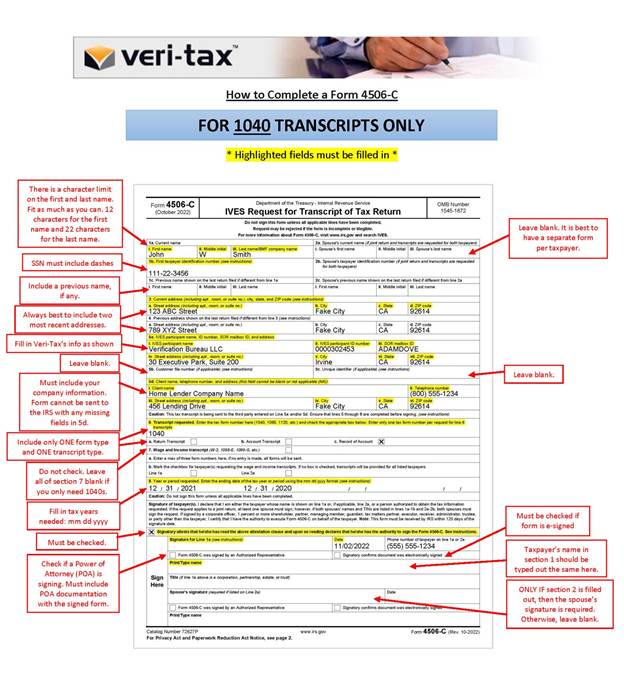
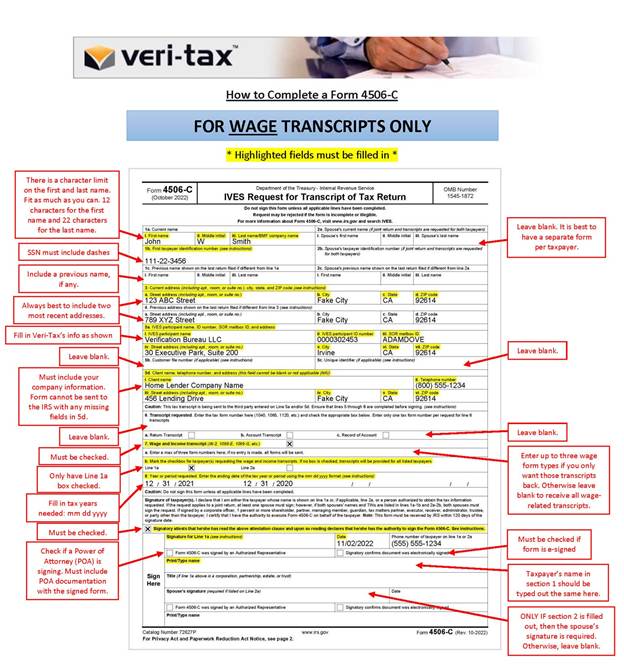
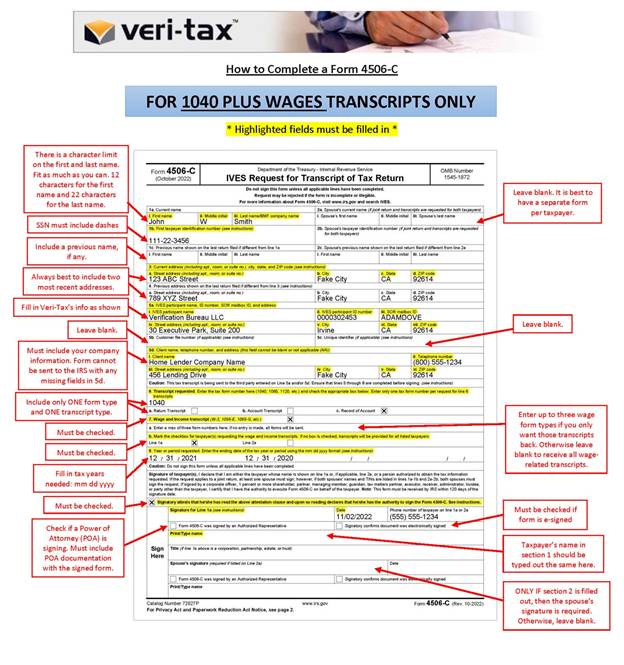
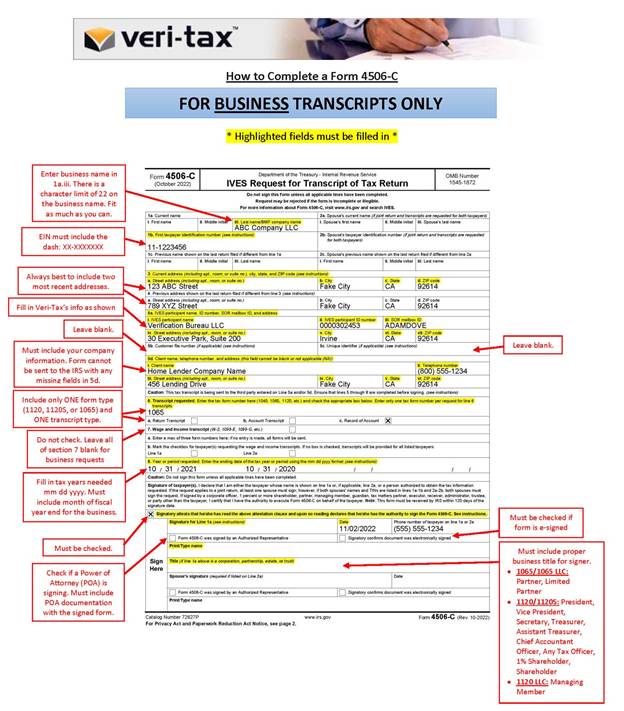
Download 4506-C Tax Transcript with Prefilled IVES participant and client name
Follow this link for more CISCO Credit Knowledgebase articles.
Was this article helpful?
That’s Great!
Thank you for your feedback
Sorry! We couldn't be helpful
Thank you for your feedback
Feedback sent
We appreciate your effort and will try to fix the article